
Overview
The hTech AI Ticket Assistant includes a Ticket Flagging system that gives you direct control over how the AI interacts with individual tickets. This feature is useful when you need to stop AI replies on certain conversations, override automation for sensitive issues, or instruct the system to avoid further AI actions. Ticket Flagging helps ensure that automation behaves safely and never interferes with human support when it shouldn’t.
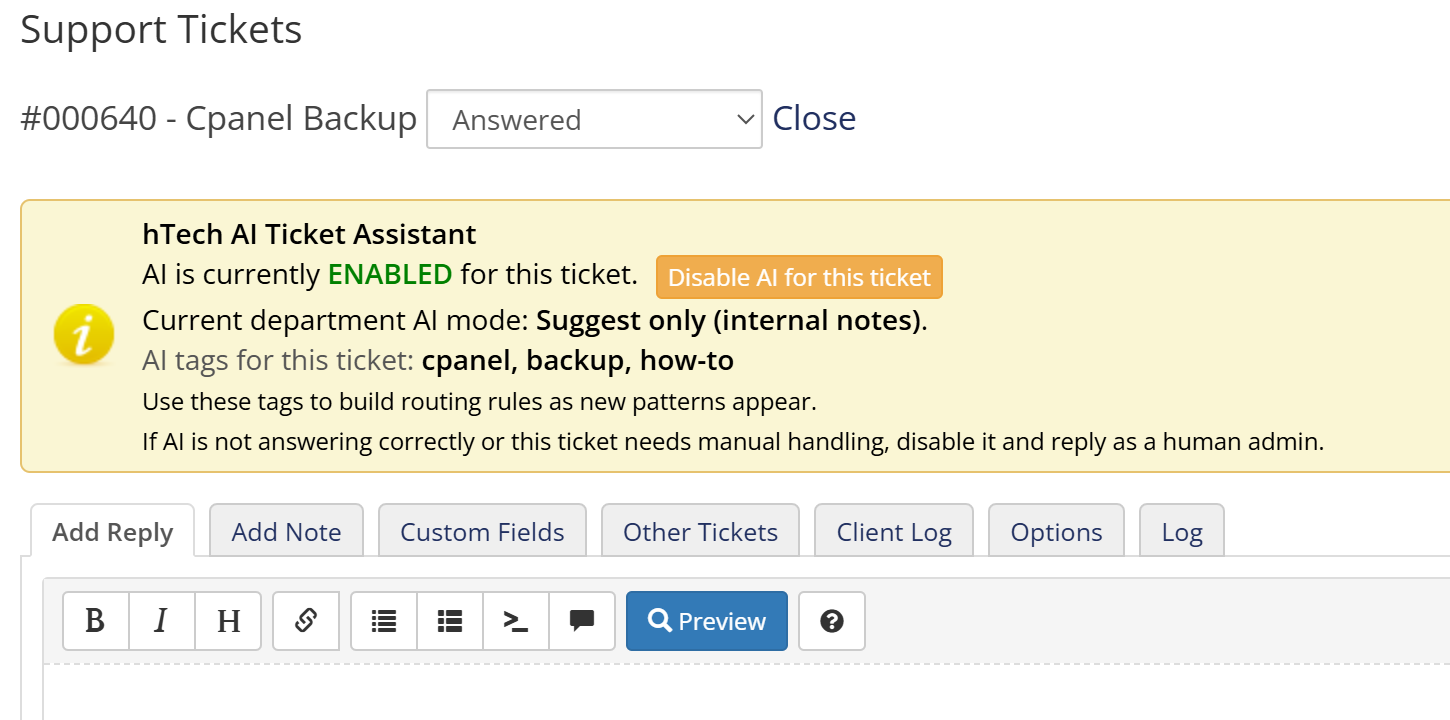
What Is Ticket Flagging?
Ticket Flagging allows an admin to manually disable AI activity for a specific ticket. When a ticket is flagged:
- The AI will not generate replies.
- No suggestions or auto-responses will be created.
- The ticket is treated as “human-only” until the flag is removed.
This is especially important for billing disputes, legal matters, escalated customers, or any situation where automation is not appropriate.
Why You Would Disable AI on a Ticket
Common reasons to disable AI for a specific ticket include:
- Customer requests “no automated replies”.
- A sensitive billing or account issue is involved.
- The customer is upset or threatening cancellation.
- A legal or compliance topic appears in the message.
- A supervisor wants direct human control over the conversation.
- AI already provided assistance and the remainder should be manual.
How to Flag a Ticket
To disable AI for a specific ticket:
- Open the ticket in the WHMCS admin area.
- Look for the AI Tools panel or AI actions sidebar.
- Click the option labeled “Disable AI for this Ticket” or similar.
Once the ticket is flagged, AI will stop interacting with it immediately.
How to Unflag a Ticket
If you want the AI to resume assistance:
- Open the ticket in WHMCS.
- Click “Enable AI for this Ticket” or “Remove Flag”.
The system will begin processing new customer replies normally as long as the department settings allow it.
How the Flag Affects AI Behavior
When a ticket is flagged:
- No Auto Reply messages are sent.
- No Suggest mode responses are generated.
- No routing or classification occurs.
- No Ticket Insights or Knowledge Suggestions are generated.
- No queue entries will be created for delayed replies.
The ticket becomes fully human-managed.
Automatic Flagging by the System
In some cases, the module may automatically disable AI for a ticket if it detects:
- Repeated negative sentiment
- High-risk content
- Escalation triggers (such as refund demands)
- Requests that violate automation rules
- Multiple failed attempts to generate a reply
This protects your staff and customers from incorrect or inappropriate automated responses.
How to Identify a Flagged Ticket
The module will clearly indicate when a ticket is flagged. You may see:
- A warning banner inside the ticket
- An icon next to the ticket ID
- A message in the AI Tools panel stating “AI Disabled for This Ticket”
Best Practices for Ticket Flagging
- Flag tickets immediately if the customer becomes upset or confused.
- Flag billing tickets where automation is not appropriate.
- Flag any ticket where your staff must manually control the conversation.
- Unflag the ticket only after confirming it is safe for AI to resume.
Flagging Does Not Affect Other Tickets
Each ticket is managed independently. Disabling AI for one ticket does not influence other tickets from the same customer or the same department.
Summary
The Ticket Flagging system gives you full control over AI behavior on a per-ticket basis. It ensures automation is safe, predictable, and appropriate for every situation. By manually disabling AI on sensitive or complicated tickets, you maintain human oversight while still benefiting from automation where it makes sense.
If you need help customizing or managing ticket flags, feel free to open a support ticket.