
Confirm your server entry is active
Once your server entry passes Test Connection (see the article on connecting your account), it appears in Configuration → System Settings → Servers under this module's own section, active and ready to be assigned to a product:

State your storage tiers before anything else
Open Addons → hTech IDrive e2 Tools → Settings and fill in Storage Tiers. It ships blank on purpose — no tier name or price ships with this module, because what you call your tiers and what you charge for them is entirely your decision. Enter one tier per line, written key|Label, for example hot|Hot storage. The key is what gets stored on the customer's order; the label is what the customer sees and can be reworded later without affecting existing services.
With Storage Tiers left blank, the next step below refuses to sync a product rather than offering an empty dropdown a customer could order from.
Create the product
Create your product as normal under Configuration → System Settings → Products/Services, set its module to this product, and put it in the server group that holds this brand's server entry.
Attach the regions and tiers with Storage Options
Open Addons → hTech IDrive e2 Tools and go to its Storage Options view. It lists every product on your installation whose module settings name this product, together with its server group, the server entry that group resolves to, and how many entries of this module's type that group holds — which must read exactly 1:
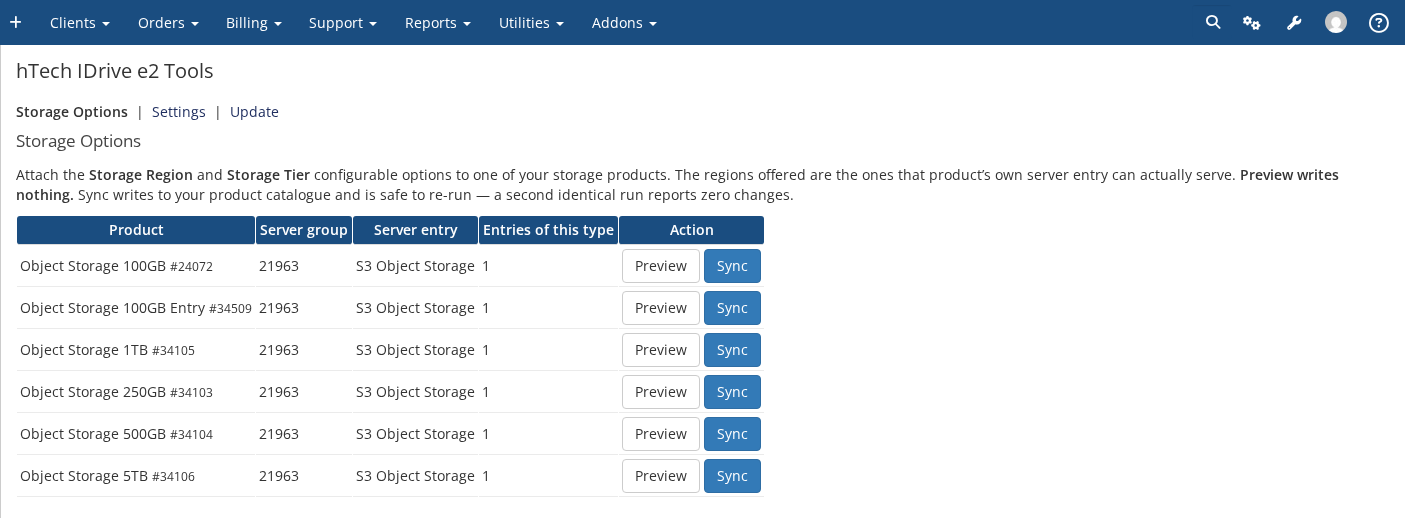
Each row has two buttons. Preview asks that product's own server entry which regions its reseller account serves, checks each region's certificate, and shows you the result — and writes nothing. Sync does the same and then writes the option group into your product catalogue. Use Preview first.
Once synced, your customer sees two dropdowns on the order form for that product: a Storage Region, listing only the regions this product's own server entry can actually serve, and a Storage Tier, listing what you entered above.